The Best Photo Editor for Beginners (Free, Online & App Options)

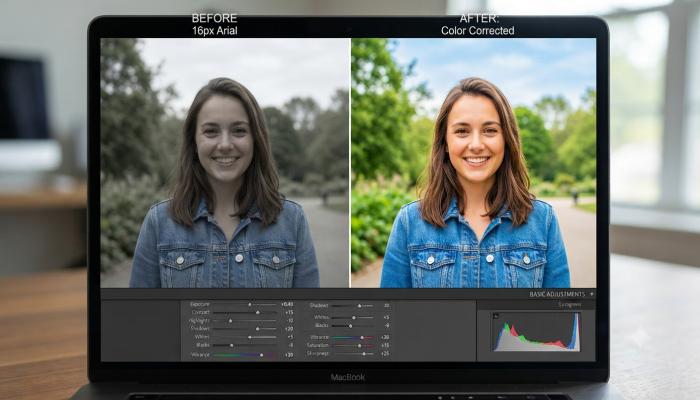
You took a great shot. The lighting’s off, the background is cluttered, and the colors look nothing like what your eyes saw. You open a search tab — and suddenly you’re buried in 47 different tools, half of which want your credit card before you even crop a photo.
I’ve been there. And after testing dozens of editors across PC, mobile, and browser, I can tell you: most beginners don’t need a complicated tool — they need the right one. This guide cuts through the noise.
What Is a Photo Editor? (Quick Definition)
A photo editor is software or an app that lets you adjust, enhance, or transform digital images. Core functions include cropping, brightness and contrast control, color correction, filters, background removal, and retouching. Most free tools cover 80% of what beginners need.
Why Choosing the Right Editor Actually Matters
Here’s a mistake I see constantly: a beginner downloads Photoshop, opens it, and quits in 10 minutes because they can’t find the crop tool. They end up using Instagram filters forever.
The editor you start with shapes your editing habits. A tool that’s too complex kills momentum. Too simple, and you outgrow it in a week. The sweet spot — especially for beginners — is something that’s free, launches fast, and doesn’t hide basic tools behind five menus.
Good photo editing software should let you:
- Fix exposure and white balance in under a minute
- Crop and resize images for specific platforms (Instagram, WhatsApp, etc.)
- Remove blemishes or distracting backgrounds
- Export at the right resolution without a quality loss
Best Free Photo Editor Options (Organized by Use Case)
1. Best Photo Editor Online (Free & No Download)
Top pick: Adobe Express / Photopea / Canva
If you don’t want to download anything, browser-based tools are the fastest way in. Photopea is the most powerful free online photo editor — it mimics Photoshop’s interface closely and handles PSD files. Canva wins for social media graphics where you need templates fast.
| Tool | Best For | Free Plan | HD Export |
|---|---|---|---|
| Photopea | Advanced edits, PSD files | ✅ Yes | ✅ Yes |
| Canva | Social media / templates | ✅ Yes | ⚠️ Limited |
| Adobe Express | Quick, polished edits | ✅ Yes | ✅ Yes |
| Pixlr E | Beginner-friendly online | ✅ Yes | ✅ Yes |
💡 Pro Tip: Photopea works entirely in your browser with no account needed. Bookmark it. It’s the best photo editor online HD option for zero cost — and it handles RAW files most paid tools would charge for.
2. Best Photo Editor App (Android APK & iOS)
Top picks: Snapseed, Lightroom Mobile, PicsArt
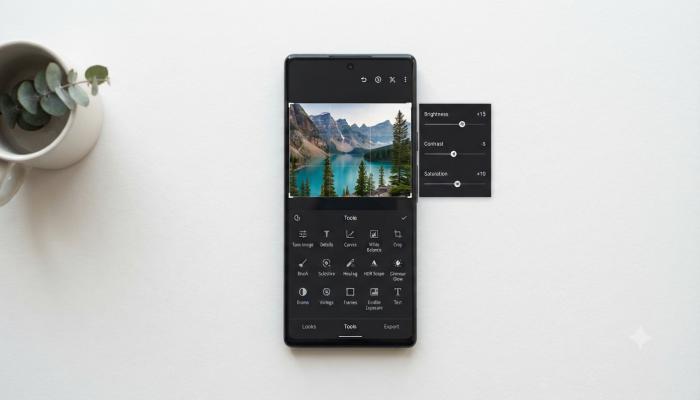
For mobile, Snapseed (by Google) is the single best free download for beginners. It’s clean, fast, and its “Selective” tool lets you adjust one part of an image without affecting the rest — a feature most $10/month apps charge for.
Snapseed — Free | No ads | Android APK + iOS
Lightroom Mobile — Free with optional Creative Cloud upgrade
PicsArt — Great for creative effects, collages, and stickers
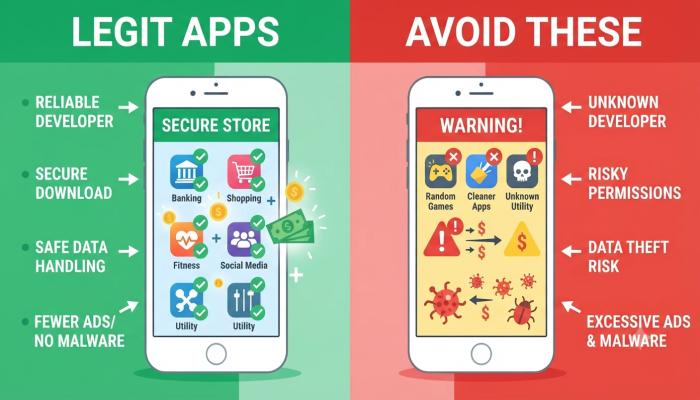
⚠️ Common Pitfall: Many “photo editor APK free” downloads on third-party sites bundle adware or outdated versions. Always download APKs from the Google Play Store or the developer’s official site. Sideloading from unknown sources is how phones get compromised.
3. Best Photo Editor for PC (Free Download)
Top picks: GIMP, Paint.NET, Luminar Neo (trial)
For Windows or Mac users who want offline power without the Adobe price tag:
- GIMP — The gold standard of free desktop editing. Steep learning curve, but handles everything from color grading to layer-based compositing.
- Paint.NET — Lighter, faster, perfect for everyday edits on Windows.
- Luminar Neo — Paid, but the trial is generous and its AI tools (sky replacement, portrait retouching) are genuinely impressive.
Which one should a beginner actually start with? Paint.NET if you’re on Windows. It opens in seconds, the toolbar makes sense, and you won’t spend 20 minutes looking for the crop tool. Upgrade to GIMP once you’re comfortable with layers.
Also Read: Call Recording: The Complete Beginner’s Guide (2026)
4. Free Photo Editor for Specific Needs
| Need | Recommended Tool |
|---|---|
| Remove background | Remove.bg (free, web-based) |
| Batch resize photos | IrfanView (free, PC) |
| Edit RAW files free | RawTherapee |
| Restore old photos | Remini (mobile app) |
| Add text to photos | Canva or PicsArt |
Quick Start: How to Edit a Photo in 5 Steps (Any Tool)
- Open your image — drag and drop works on most modern editors
- Straighten and crop — fix the horizon line and remove dead space
- Adjust exposure — bump brightness slightly, pull back highlights if blown out
- Correct white balance — push toward warm (yellow) for sunsets, cool (blue) for overcast shots
- Export at the right size — 1080px wide for Instagram, 2000px for printing
💡 Unique Insight (you won’t find this in most guides): Most beginners edit brightness last — but you should adjust it first. Your eye compensates for dark images when evaluating color. Fix the exposure early, and you’ll make far fewer color correction mistakes afterward.
Semantic FAQ: People Also Ask
Q: What is the best free photo editor for beginners?
Snapseed (mobile) and Paint.NET (PC) are the best starting points. Both are free, fast to learn, and don’t overwhelm new users with professional-grade options they won’t use for months.
Q: Is there a photo editor online free with no sign-up?
Yes. Photopea works entirely in your browser with no account required. Pixlr E also offers a no-login option for quick edits.
Q: Can I download a photo editor APK for free safely?
Yes — but only from official sources like the Google Play Store. Third-party APK sites often contain outdated or modified versions with adware. Snapseed, Lightroom Mobile, and PicsArt all have safe, free official APKs.
Q: What’s the best photo editor for PC without paying?
GIMP is the most powerful free PC editor available. For something lighter, Paint.NET is faster to learn and better suited for everyday tasks.
Q: Is Adobe Photoshop free?
No, Photoshop requires a Creative Cloud subscription (~$21/month). However, Adobe Express and Photoshop Express are free alternatives with solid basic features.
Q: Which photo editor is best for editing HD photos online?
Photopea handles high-resolution files well and exports at full quality for free. Adobe Express also supports HD exports without watermarks.
Q: What photo editor do professionals use?
Adobe Lightroom and Photoshop dominate professional workflows. For video content creators, Capture One is also widely used. That said, many professionals use Snapseed for quick mobile edits.
Your Next Step Checklist
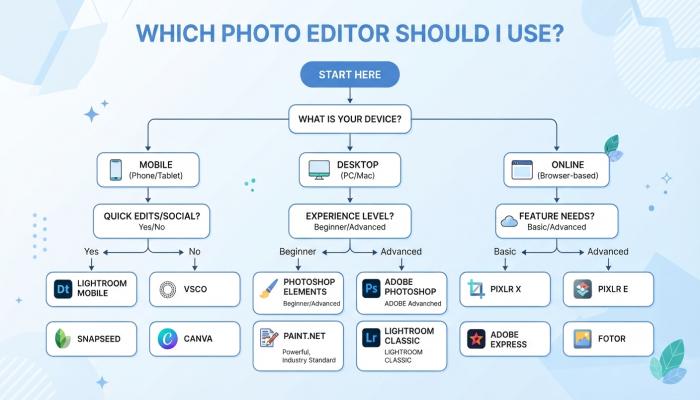
You’ve got the map. Now pick a lane and start moving.
- [ ] Identify your device — PC, mobile, or browser-only?
- [ ] Download or bookmark one tool from this guide (resist the urge to try all five at once)
- [ ] Find 3 practice photos — old shots you never used are perfect
- [ ] Edit the same photo in two different tools to see which workflow clicks for you
- [ ] Save your “before” versions — watching your progress over 30 days is genuinely motivating
The best photo editor isn’t the one with the most features. It’s the one you actually open.